Windows Installation
This page describes how to install Stardog CLI tools on Windows.
Page Contents
This guide installs Stardog CLI tools only. To run a Stardog server, use Docker. The CLI tools can be used to connect to and manage remote Stardog servers.
Install CLI Tools from ZIP
-
Install Java if you have not already.
Stardog requires Java version 21. Java 21 can be downloaded from Oracle, Adoptium, or Microsoft.
-
Download the CLI distribution.
-
Unzip the file and place it in your desired installation location.
For example, you might place the installation in a folder like
C:\Users\<username>\stardog-cli. -
Set up
JAVA_HOME(if not already set).Set the
JAVA_HOMEenvironment variable to the directory where you installed Java.- Launch “Control Panel” > “System” > “Advanced system settings” > Switch to “Advanced” tab > “Environment variables…” > Choose “New”
- Enter
JAVA_HOMEfor the variable name and provide the path to your Java installation directory as the value.
For example, if you installed Microsoft OpenJDK 21 in
C:\Program Files\Microsoft\jdk-21.0.2.13-hotspot, setJAVA_HOME=C:\Program Files\Microsoft\jdk-21.0.2.13-hotspot\. -
Place the
binfolder of the unzipped Stardog CLI distribution on yourPATH.This allows the
stardog.batandstardog-admin.batscripts to be used regardless of the current working directory.-
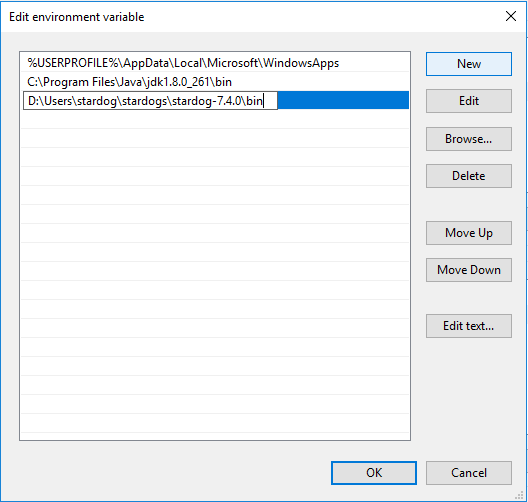
Launch “Control Panel” > “System” > “Advanced system settings” > Switch to “Advanced” tab > “Environment variables” > Select the entry containing
Path, Choose “Edit” -
Choose “New” and enter the full path to the
bindirectory within the unzipped Stardog CLI distribution.
Alternatively, set a temporary environment variable from the command line (this will only last as long as your command prompt session):
SET PATH=%PATH%;C:\Users\<username>\stardog-cli\stardog-cli-<version>\bin -
Using the CLI
You can now use the stardog and stardog-admin commands to connect to remote Stardog servers:
# Query a remote server
stardog query -s http://my-stardog-server:5820 mydb "SELECT * WHERE { ?s ?p ?o } LIMIT 10"

# Check server status
stardog-admin --server http://my-stardog-server:5820 server status
What’s Next?
Get Started with Stardog Cloud, our complete Enterprise Knowledge Graph Platform, and connect to your running Stardog server.
Check out our additional Getting Started Resources for some introductory blog posts, tutorials, video trainings, and more.