Azure Marketplace setup
This page describes how to run Stardog from the Azure Marketplace.
Page Contents
Requirements
To launch Stardog from the Azure Marketplace, you need an active Azure subscription and permission to create or manage the following resources in the target resource group:
- Azure Container Apps environments and container apps
- Storage accounts and Azure file shares
- Azure Key Vaults
- User-assigned managed identities
- Log Analytics workspaces
You also need a Stardog license file (stardog-license-key.bin). No virtual machine, public IP address, or SSH key is required.
Setup
Step 1: Subscribe to Stardog Enterprise Knowledge Graph Platform
Look for Stardog in the Azure marketplace. You can get this directly by following this link. Click on Get It Now.
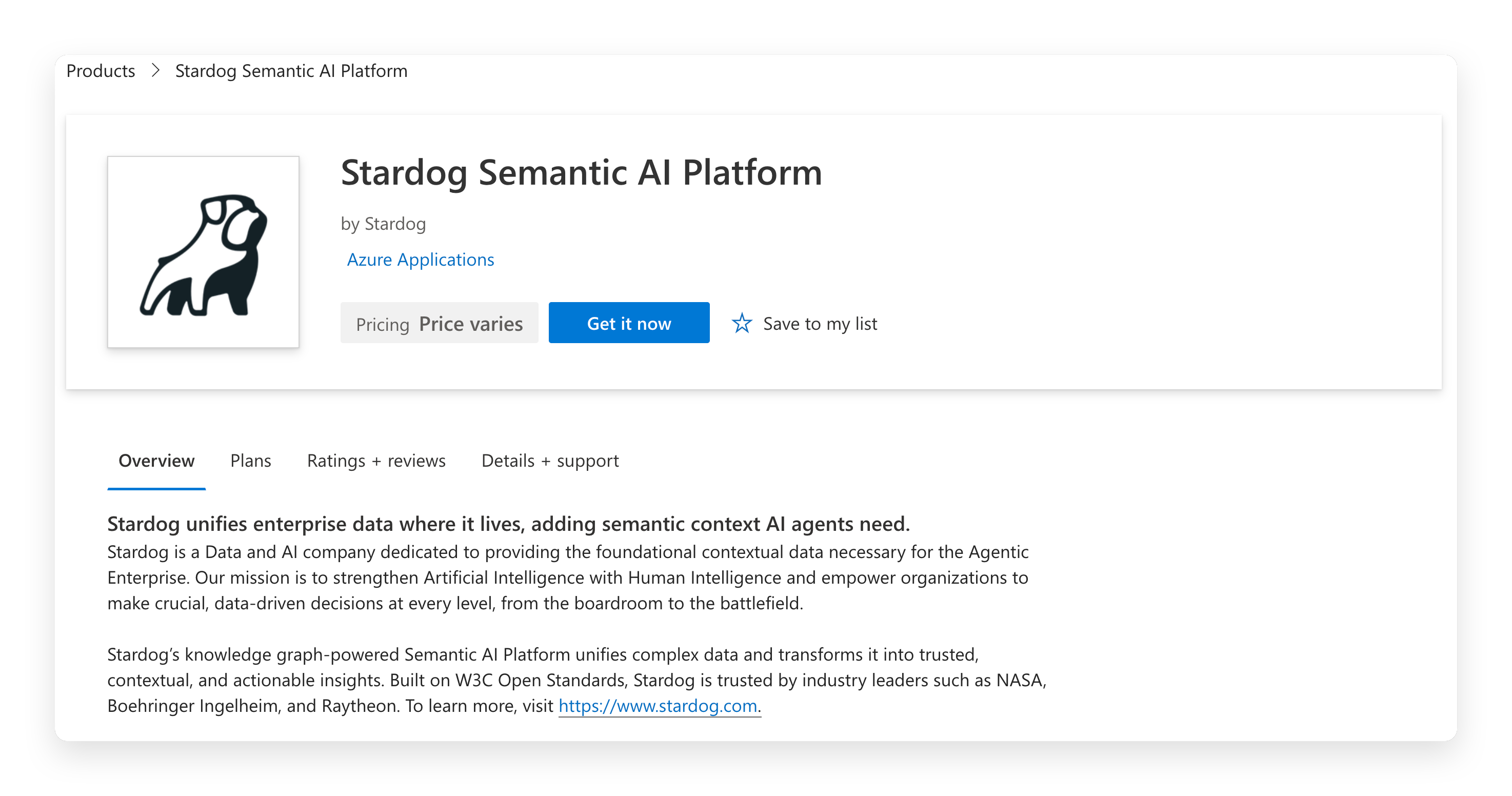
Accept the terms and then continue to the configuration. If you are not logged in, you will be prompted to log in to Azure.
Step 2: Configure Stardog Stack
Next, select your desired Azure subscription, “Full Stack Plan,” and click on Create.
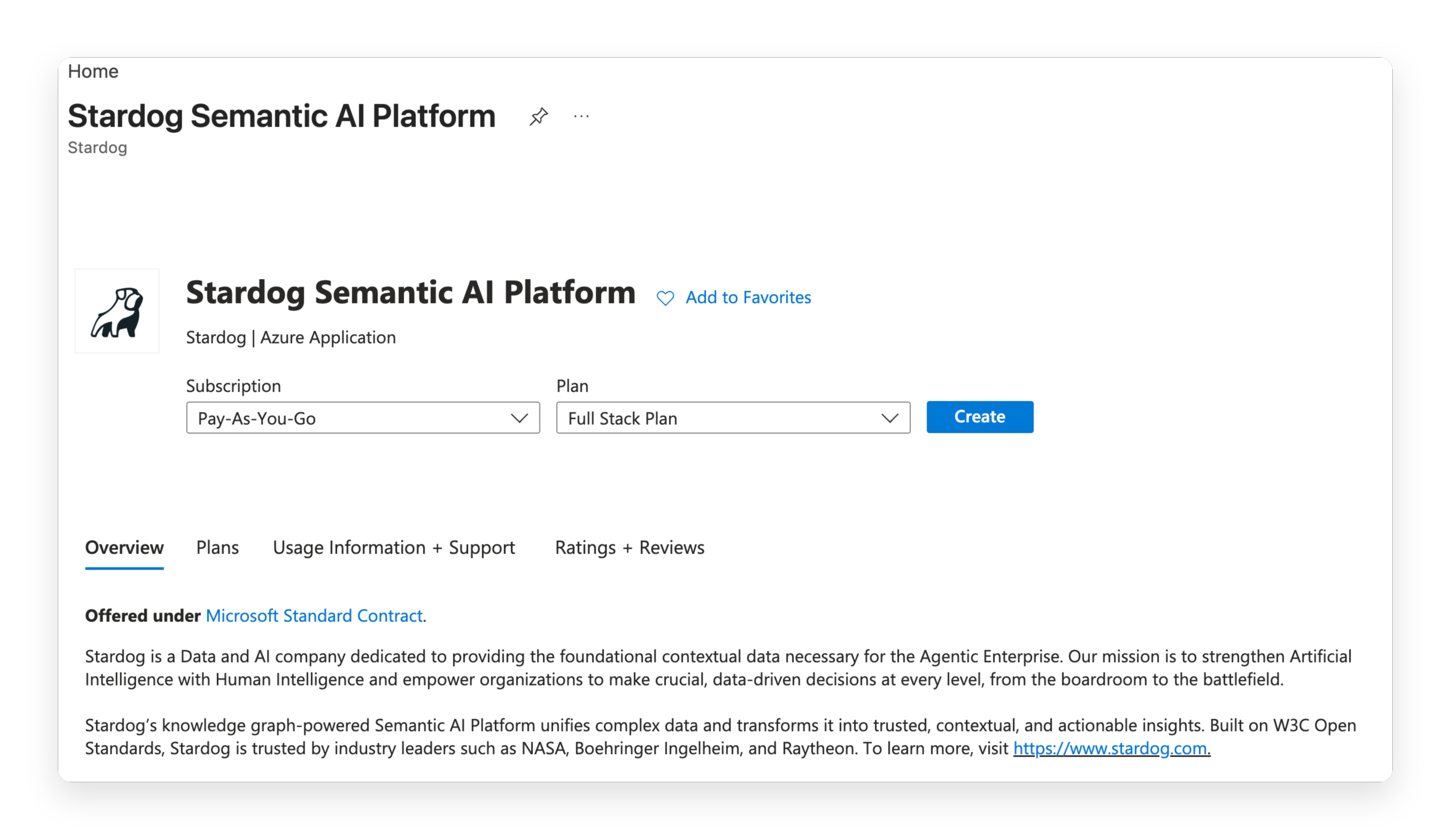
Basics
- Choose the resource group where you want to deploy the Stardog stack, or create one.
- Choose the region where you want to deploy it. The Marketplace offer lists regions that support Azure AI Foundry. You can still skip AI Assistant configuration if you do not yet have an AI endpoint.
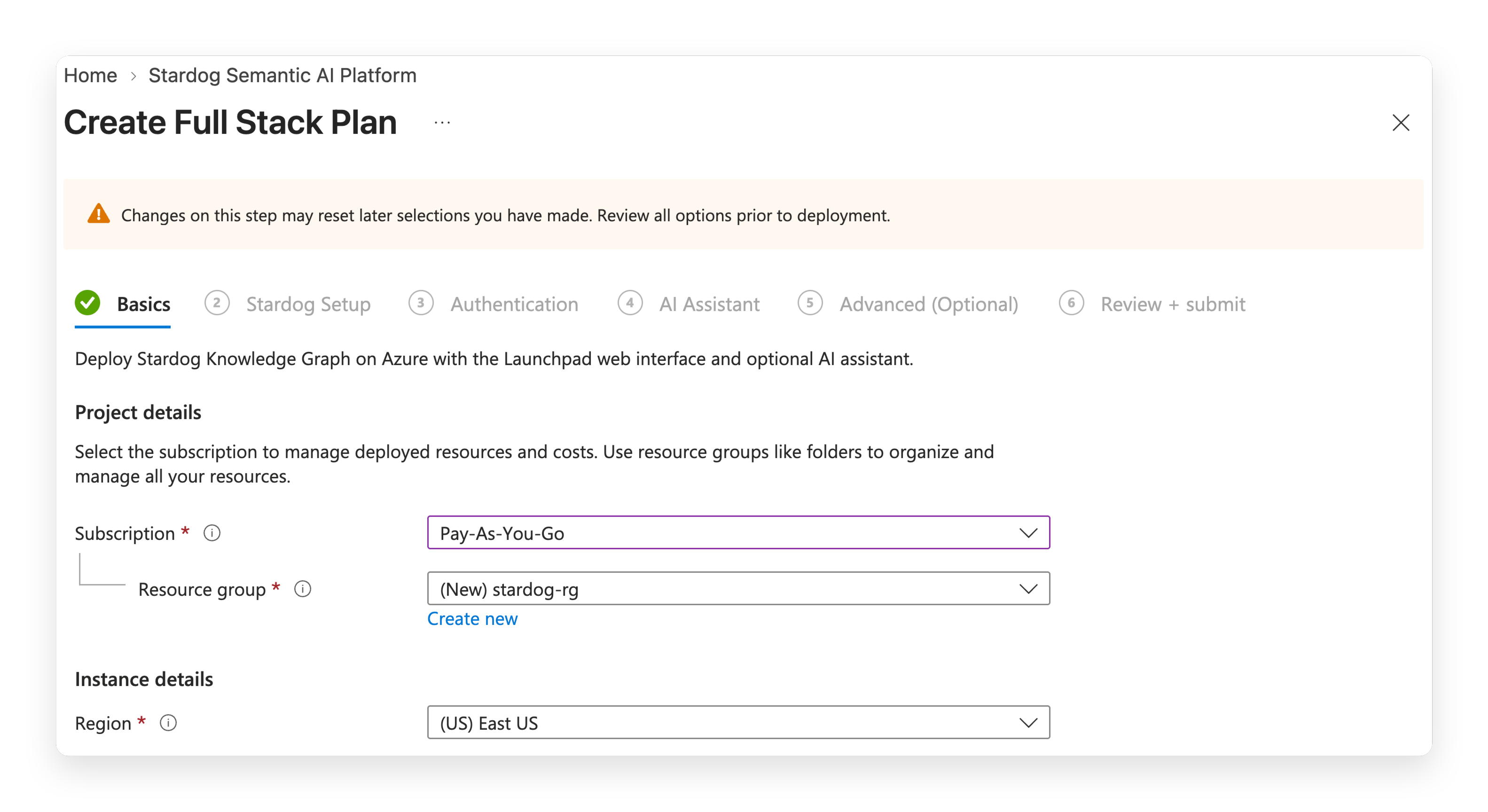
Stardog Setup
- Set and confirm the password for Stardog’s
adminuser. It must be 12–72 characters and include uppercase, lowercase, numeric, and special characters. - Upload your Stardog license file.
- Choose a deployment size. The default is Medium.
- Optionally set the Stardog data disk size. Leave it blank to use the size selected for the deployment tier.
| Deployment size | Stardog resources | Default data disk |
|---|---|---|
| Evaluation | 4 vCPU, 8 GiB | 100 GiB |
| Small | 4 vCPU, 16 GiB | 100 GiB |
| Medium | 8 vCPU, 32 GiB | 250 GiB |
| Large | 16 vCPU, 64 GiB | 500 GiB |
Evaluation uses Azure Container Apps’ pay-per-use Consumption plan and is intended for trials. Small, Medium, and Large use dedicated workload profiles, which continue to incur Azure charges while provisioned, including when idle. Medium is a good starting point for a proof of concept.
Authentication
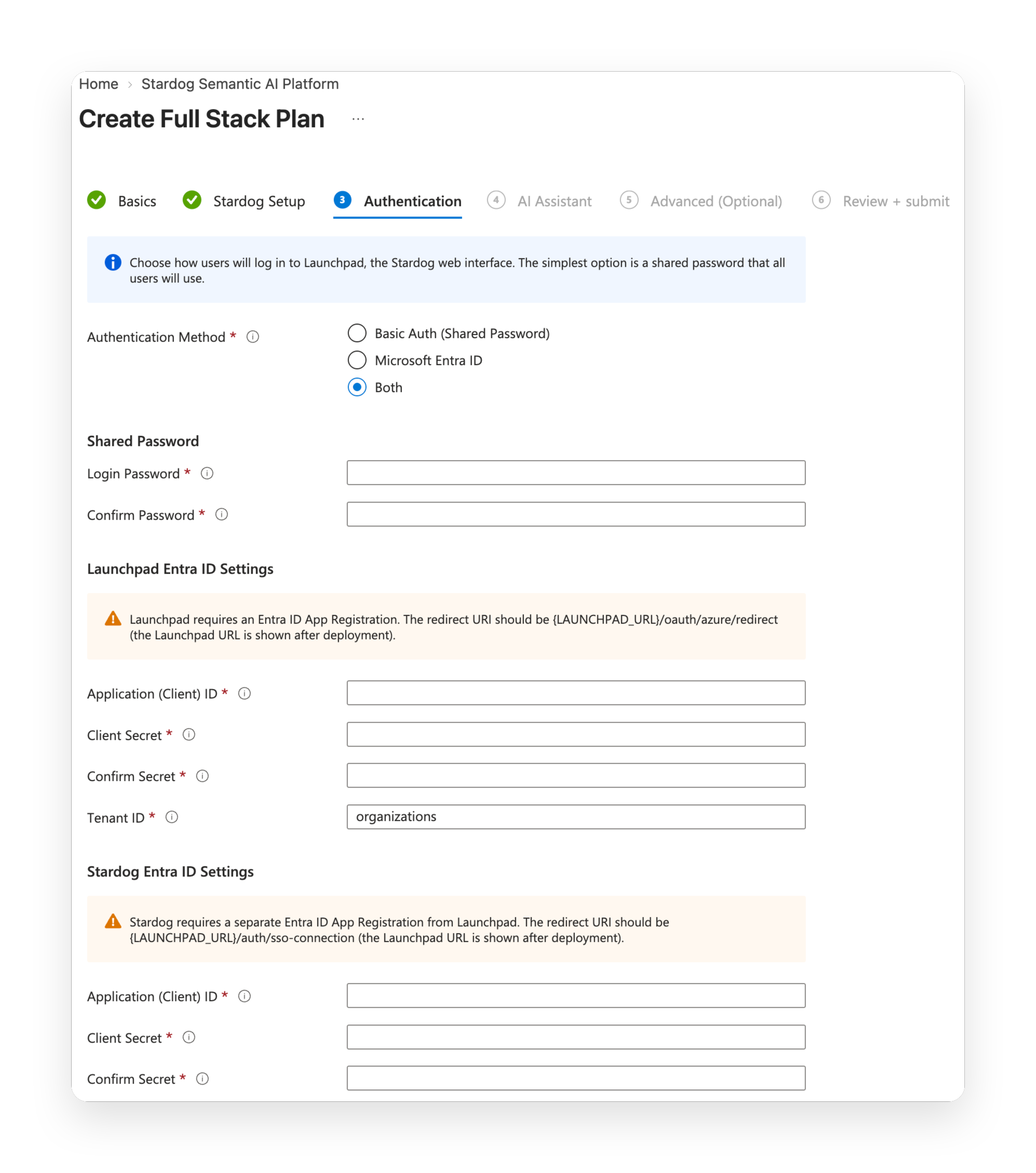
Choose how users authenticate to Launchpad. You can select either method or both:
- Basic Auth (Shared Password): Creates a shared Launchpad login with username
admin. This password is separate from the Stardogadminpassword specified on the previous step. - Microsoft Entra ID: Requires two Entra ID app registrations: one for the Launchpad login and one for the Stardog connection. Enter the client ID and client secret for each registration, plus your tenant ID. After deployment, add these redirect URIs to the respective registrations:
- Launchpad:
https://<launchpad-url>/oauth/azure/redirect - Stardog connection:
https://<launchpad-url>/auth/sso-connection
- Launchpad:
For broader Stardog Entra ID configuration, see OAuth integration.
AI Assistant (Voicebox)
Voicebox lets users query their knowledge graph in natural language. It is always deployed, but it needs an Azure AI Foundry endpoint before AI features can be used. Choose Skip — I’ll configure this later if you do not have an endpoint yet.
To configure it during deployment, get the endpoint and key from your Azure AI Foundry resource under Resource Management > Keys and Endpoint. Use the Azure AI Foundry inference hostname, not the cognitiveservices.azure.com hostname shown by the portal:
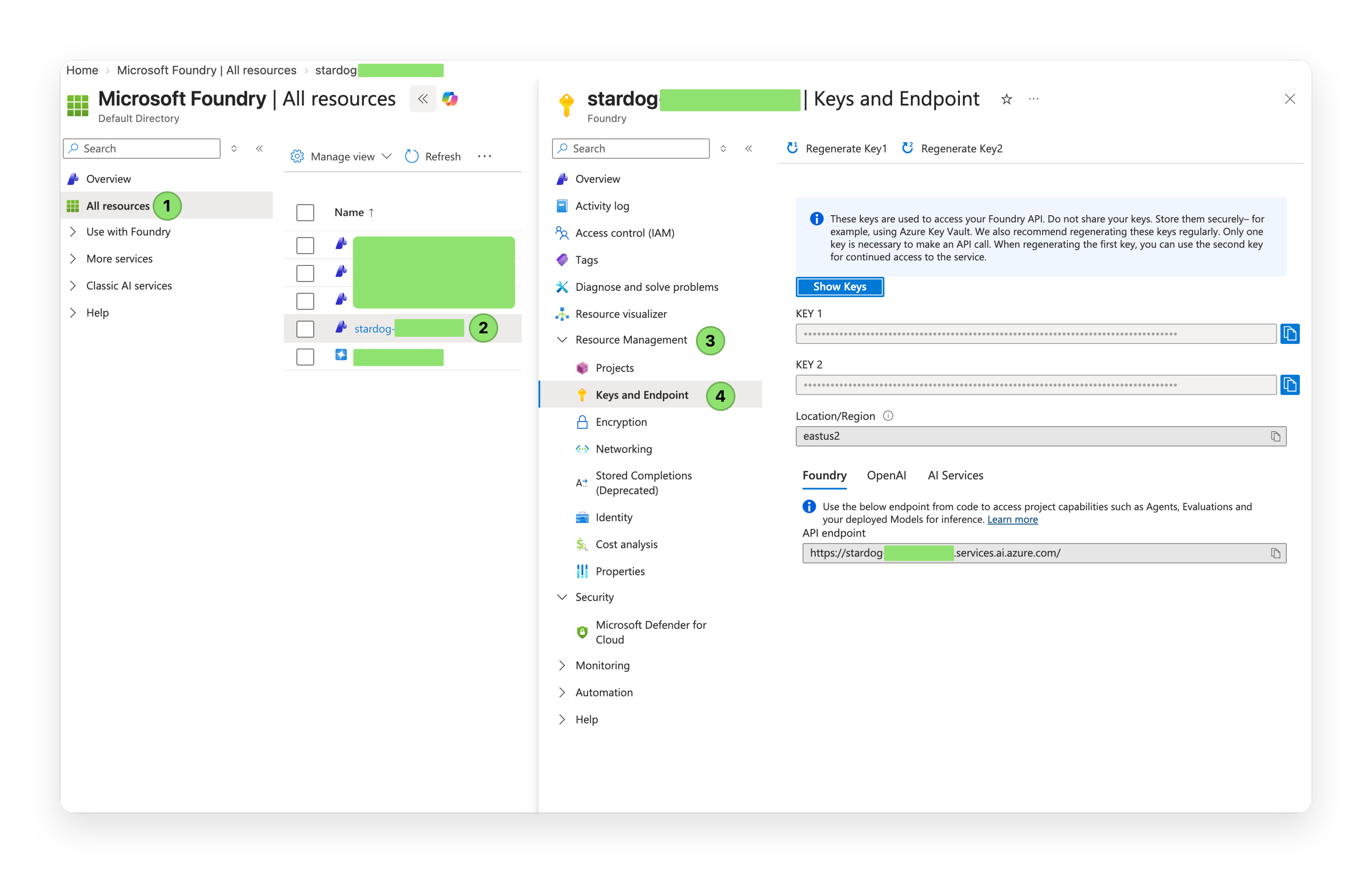
- Choose Azure AI Inference for GPT, Llama, or o-series models and use
https://<resource>.services.ai.azure.com/modelsas the endpoint; choose Anthropic on Azure Foundry for Claude and usehttps://<resource>.services.ai.azure.com/anthropic/. - Provide the AI Foundry API key.
- Enter the model deployment name from AI Foundry. This is often, but is not necessarily, the same as the model name.
Advanced
Most users can skip this section: its resource defaults are derived from the selected deployment size. Use it only to override Stardog CPU, memory, JVM heap/direct memory, disk storage type, container images, a private registry, the Launchpad display name, the SQL/BI port, or additional Stardog properties.
The default storage type is Standard LRS. Choose Premium LRS for SSD-backed Azure Files when your workload needs higher I/O performance.
Review + Submit
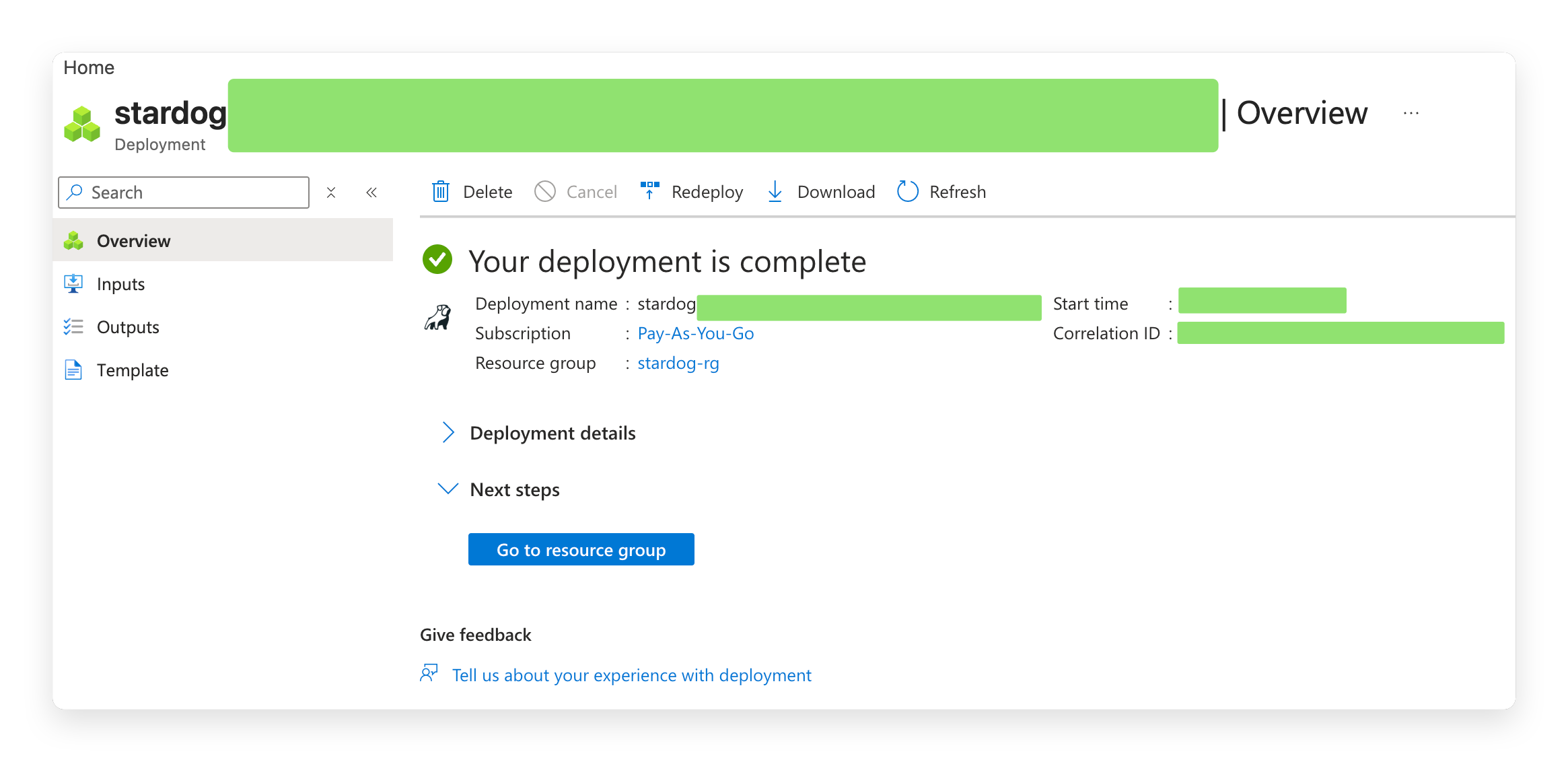
Review your selections, then select Create to begin provisioning Stardog, Launchpad, Voicebox, persistent Azure Files storage, and the supporting Azure resources. Provisioning normally takes 10–20 minutes; first startup can take a few additional minutes while Stardog initializes its data directory.
Step 3: Access Stardog
When deployment completes, open the deployment’s Outputs tab. It provides the following URLs:
- Launchpad URL: Use this web portal for Stardog applications, including Explorer, Designer, Studio, and Voicebox. Sign in with the authentication method chosen during setup.
- Stardog URL: Use this HTTPS endpoint for the Stardog HTTP API and programmatic clients. Authenticate with the Stardog
admincredentials set during setup or with the configured Entra ID authentication.
The Marketplace deployment has already started Stardog and installed the uploaded license. There is no server to access over SSH and no license file to copy manually.
To verify the service, open Launchpad, or request Stardog’s health endpoint:
curl -fsS https://<stardog-fqdn>/admin/alive
Configure Voicebox after deployment
If you configured an AI endpoint in the wizard, Voicebox is ready to use. To add or change it later, create an Azure AI Foundry resource and deploy a supported model, then retrieve its endpoint and API key. You need the Key Vault Secrets Officer role on the Key Vault created by the deployment.
Store the API key as voicebox-azure-ai-key in that Key Vault. You must use the Azure CLI—not the Azure Portal’s container edit blade—to add the secret reference and update the Voicebox Container App. The Portal blade splits Voicebox’s multi-argument startup command on commas, which can corrupt the command and cause the container to crash. Replace the placeholders with values from the deployment outputs:
az containerapp secret set \
  --name <voicebox-app-name> \
  --resource-group <resource-group> \
  --secrets "voicebox-azure-ai-key=keyvaultref:https://<keyvault-name>.vault.azure.net/secrets/voicebox-azure-ai-key,identityref:<managed-identity-resource-id>"
For GPT, Llama, and o-series models, configure Voicebox with Azure AI Inference:
az containerapp update \
  --name <voicebox-app-name> \
  --resource-group <resource-group> \
  --set-env-vars \
    'VBX_CONFIG_CONTENT={"enable_external_llm":true,"enable_analytics":true,"enable_charts":true,"default_llm_config":{"llm_provider":"azure","llm_name":"<model-deployment-name>","server_url":"https://<resource>.services.ai.azure.com/models"}}' \
    'AZURE_API_KEY=secretref:voicebox-azure-ai-key'
For Claude models hosted in Azure AI Foundry, use this command instead:
az containerapp update \
  --name <voicebox-app-name> \
  --resource-group <resource-group> \
  --set-env-vars \
    'VBX_CONFIG_CONTENT={"enable_external_llm":true,"enable_analytics":true,"enable_charts":true,"default_llm_config":{"llm_provider":"anthropic","llm_name":"<model-deployment-name>","server_url":"https://<resource>.services.ai.azure.com/anthropic/"}}' \
    'AZURE_API_KEY=secretref:voicebox-azure-ai-key'
Each update creates a new Voicebox revision and moves traffic to it.
For guidance on managing the deployed server, see Operating Stardog.