PingOne Configuration
Page Contents
- Login Provider Configuration
- SSO Connection Configuration
SSOCONNECTION_<unique_identifier>_PING_CLIENT_IDSSOCONNECTION_<unique_identifier>_PING_CLIENT_SECRETSSOCONNECTION_<unique_identifier>_PING_ENVIRONMENT_IDSSOCONNECTION_<unique_identifier>_PING_ROLES_SCOPESSOCONNECTION_<unique_identifier>_PING_TOKEN_AUTH_METHODSSOCONNECTION_<unique_identifier>_PING_OIDC_DISCOVERY_URLSSOCONNECTION_<unique_identifier>_PING_DISPLAY_NAMESSOCONNECTION_<unique_identifier>_PING_STARDOG_ENDPOINTSSOCONNECTION_<unique_identifier>_PING_STARDOG_INTERNAL_ENDPOINT- Setting up a PingOne SSO Connection

PingOne can be used both as a login provider to authenticate users into Launchpad and as an SSO connection provider to authenticate users against Stardog endpoints.
Login Provider Configuration
The following configuration options are available for PingOne SSO.
See How to Create a PingOne OIDC Client to login with PingOne in Launchpad for additional information.
PING_AUTH_ENABLED
PING_AUTH_ENABLED is used to enable or disable PingOne authentication to log users into Launchpad.
- Required: Yes (if using PingOne)
- Default:
false
PING_CLIENT_ID
PING_CLIENT_ID is the client id of the PingOne OIDC client used to log users into Launchpad.
- Required: Yes (if using PingOne)
- Default: not set
PING_CLIENT_SECRET
PING_CLIENT_SECRET is the client secret of the PingOne OIDC client used to log users into Launchpad.
- Required: Yes (if using PingOne)
- Default: not set
PING_ENVIRONMENT_ID
PING_ENVIRONMENT_ID is the environment id of the PingOne environment used to log users into Launchpad.
- Required: Yes (if using PingOne)
- Default: not set
PING_TOKEN_AUTH_METHOD
PING_TOKEN_AUTH_METHOD is the authentication method used to authenticate with PingOne. client_secret_post are client_secret_basic the only supported values. The default when creating an OIDC client in PingOne is client_secret_basic.
- Required: No (Yes if the authentication method set in PingOne is not
client_secret_basic) - Default:
client_secret_basic
PING_OIDC_DISCOVERY_URL
PING_OIDC_DISCOVERY_URL is the URL of the OIDC discovery document for the PingOne environment. This is used to retrieve the OIDC configuration for the PingOne environment. The default if not set is https://auth.pingone.com/{PING_ENVIRONMENT_ID}/as/.well-known/openid-configuration. This can be overridden if needed to support custom PingOne for Enterprise environments.
- Required: No
- Default:
https://auth.pingone.com/{PING_ENVIRONMENT_ID}/as/.well-known/openid-configuration
How To Create a PingOne OIDC Client to login with PingOne in Launchpad
- Create an OIDC Application. See the Ping docs for more information on creating an OIDC app.
- select OIDC Web App as the application type
- set the Redirect URI to
{BASE_URL}/oauth/ping/redirect- See
BASE_URLfor more information on what the value should.
- See
- under Resources, add additional scopes to the application:
email,profile.openidshould already be added by default but is also required. - under Configuration, add a redirect URI of
{BASE_URL}/oauth/ping/redirect - optionally, under Configuration > Token Endpoint Auth Method, set the token endpoint auth method to either
Client Secret Basic(default) orClient Secret Post. If you set this toClient Secret Post, you will need to setPING_TOKEN_AUTH_METHOD=client_secret_postin the Launchpad configuration.
- Configure Launchpad
All of the following settings can be found in the application’s overview page, including the client secret.
PING_AUTH_ENABLED=true
PING_CLIENT_ID=<client_id>
PING_CLIENT_SECRET=<client_secret>
PING_ENVIRONMENT_ID=<environment_id>

# only required if you selected "Client Secret Post" for the "Token Endpoint Auth Method" in the Ping Application Configuration.
# This will default to `client_secret_basic` if not provided or an invalid value is provided.
# PING_TOKEN_AUTH_METHOD=client_secret_post

# only required if the OIDC discovery URL is different from the default of `https://auth.pingone.com/{PING_ENVIRONMENT_ID}/as/.well-known/openid-configuration`
# PING_OIDC_DISCOVERY_URL=<custom_discovery_url>
SSO Connection Configuration
The following configuration options are available for PingOne SSO Connections, which allow users to authenticate against Stardog endpoints using PingOne tokens.
SSOCONNECTION_<unique_identifier>_PING_CLIENT_ID
The SSOCONNECTION_<unique_identifier>_PING_CLIENT_ID is the client id of the PingOne OIDC client used to authenticate and authorize users to connect to the Stardog endpoint.
- Required: Yes
- Default: not set
SSOCONNECTION_<unique_identifier>_PING_CLIENT_SECRET
The SSOCONNECTION_<unique_identifier>_PING_CLIENT_SECRET is the client secret of the PingOne OIDC client used to authenticate and authorize users to connect to the Stardog endpoint.
- Required: Yes
- Default: not set
SSOCONNECTION_<unique_identifier>_PING_ENVIRONMENT_ID
The SSOCONNECTION_<unique_identifier>_PING_ENVIRONMENT_ID is the environment id of the PingOne environment used to authenticate and authorize users to connect to the Stardog endpoint.
- Required: Yes
- Default: not set
SSOCONNECTION_<unique_identifier>_PING_ROLES_SCOPE
The SSOCONNECTION_<unique_identifier>_PING_ROLES_SCOPE is the scope used to retrieve the roles assigned to the user from PingOne. This is used to retrieve the roles assigned to the user from PingOne and assign them to the user in Stardog.
- Required: Yes
- Default: not set
SSOCONNECTION_<unique_identifier>_PING_TOKEN_AUTH_METHOD
The SSOCONNECTION_<unique_identifier>_PING_TOKEN_AUTH_METHOD is the authentication method used to authenticate with PingOne. client_secret_post are client_secret_basic the only supported values. The default when creating an OIDC client in PingOne is client_secret_basic.
- Required: No (Yes if the authentication method set in PingOne is not
client_secret_basic) - Default:
client_secret_basic
SSOCONNECTION_<unique_identifier>_PING_OIDC_DISCOVERY_URL
The SSOCONNECTION_<unique_identifier>_PING_OIDC_DISCOVERY_URL is the URL of the OIDC discovery document for the PingOne environment. This is used to retrieve the OIDC configuration for the PingOne environment. The default if not set is https://auth.pingone.com/{PING_ENVIRONMENT_ID}/as/.well-known/openid-configuration. This can be overridden if needed to support custom PingOne for Enterprise environments.
- Required: No
- Default:
https://auth.pingone.com/{PING_ENVIRONMENT_ID}/as/.well-known/openid-configuration
SSOCONNECTION_<unique_identifier>_PING_DISPLAY_NAME
The SSOCONNECTION_<unique_identifier>_PING_DISPLAY_NAME is the user-facing display name for this SSO Connection. This is the name that will be displayed to users when they are selecting an SSO Connection to connect to a Stardog endpoint. If not set, the unique identifier will be used as the display name.
- Required: No
- Default:
SSOCONNECTION_<unique_identifier>_PING_STARDOG_ENDPOINT
The SSOCONNECTION_<unique_identifier>_PING_STARDOG_ENDPOINT is the URL of the Stardog endpoint that users will connect to using this SSO Connection. This is not required. If not set, users will need to manually enter the Stardog endpoint URL when creating an SSO connection. If provided, it will be pre-filled in the SSO Connection form.
- Required: No
- Default: not set
SSOCONNECTION_<unique_identifier>_PING_STARDOG_INTERNAL_ENDPOINT
The SSOCONNECTION_<unique_identifier>_PING_STARDOG_INTERNAL_ENDPOINT is an additional internal or private endpoint URL for the Stardog server. When configured, this endpoint is used by Launchpad for server-side operations, particularly for the Voicebox service container. This is useful in architectures where backend services cannot access Stardog on the public endpoint but can communicate using an internal endpoint.
When both endpoints are configured, Voicebox requests automatically use the internal endpoint while browser-based requests (Studio, Explorer, etc.) continue using the public endpoint. The internal endpoint can be overridden by users under “Advanced Options” in the SSO connection dialog.
- Required: No
- Default: not set
Setting up a PingOne SSO Connection
The following example uses a custom attribute on a user in PingOne to store the Stardog roles assigned to the user. This is just one way to store roles in PingOne that represent a user’s Stardog roles. You can use any method that works for your organization. The important thing is that the roles are available in the access token that is issued by PingOne. The SSOCONNECTION_<unique_identifier>_PING_ROLES_SCOPE should be set to the scope to pull in the claim representing Stardog roles in the access token.
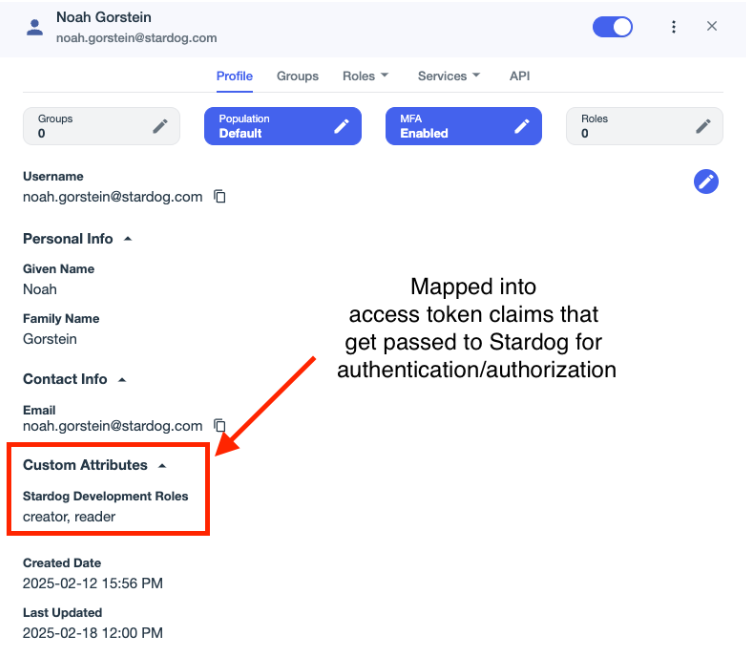
- Add a new custom user attribute to the Ping user profile. This attribute will be used to store the Stardog roles for a user. If you have multiple Stardog servers, you can create multiple attributes, one for each server.
- Under Directory > User Attributes, add a Declared user attribute.
- Name:
stardogDevelopmentRoles - Description (Optional): “Roles assigned to the user on the development Stardog server”
- Display Name: “Development Stardog Roles”
- Allow multiple values: Yes
- Name:
- Under Directory > User Attributes, add a Declared user attribute.
-
Assign a value to the user attribute for a user.
- Under Directory > Users, select a user and assign a value to the
stardogDevelopmentRolesattribute. You need to click the +Add button in the Custom Attributes section at the bottom of the user’s profile. The values should match exactly the roles in Stardog. For example, if you have a role in Stardog calledadmin, you should have a value in thestardogDevelopmentRolesattribute calledadmin. Case sensitivity matters.
- Under Directory > Users, select a user and assign a value to the
- Under Applications > Resources, create a new custom resource to access the custom attribute representing the Stardog roles in the user’s profile. This resource will be used to access the custom attribute in the access token. The new resource dialog has 3 parts:
- Section 1: Create Resource Profile
- Resource Name:
stardogDevelopmentServer - Audience (Optional): Can be left blank in which case it will default to the resource name (
stardogDevelopmentServer). This can be changed to something else if you want to use a different audience in the access token. We will use this audience in the JWT configuration for Stardog. - Description: “Access to the development Stardog server roles”
- Attributes: Add the
stardogDevelopmentRolesattribute
- Resource Name:
- Section 2: Attributes
- Configure the Stardog Roles and Username attributes for the resource.
- Click the +Add button.
- For the Stardog roles attribute name, choose a name (e.g.,
sd-roles) and for the PingOne mappings selector, useStardog Development Roles. This will map thestardogDevelopmentRolesattribute to thesd-rolesclaim in the access token. Thesd-rolesclaim will be used in the JWT configuration for Stardog and will be used to assign roles to the user in Stardog. - For the username attribute name, choose a name (e.g.,
sd-username) and for the PingOne mappings selector, useEmail Addressor some other unique attribute. This will map the username of the user to thesd-usernameclaim in the access token. Theusernameclaim will be used to create the user in Stardog.
- For the Stardog roles attribute name, choose a name (e.g.,
- Click the +Add button.
- Configure the Stardog Roles and Username attributes for the resource.
- Section 3: Scopes
- Configure scopes for the resource. This will be used by Launchpad to request the roles claim in the access token.
- Scope Name:
stardogDevelopmentServerAccess(or some other name) - Description: “Access to the development Stardog server roles”
- Scope Name:
- Configure scopes for the resource. This will be used by Launchpad to request the roles claim in the access token.
- Section 1: Create Resource Profile
- Create an OIDC application for the Stardog server in PingOne. See the Ping docs for more information on creating an OIDC app.
- select OIDC Web App as the application type
- under Resources, add additional scopes to the application:
emailprofileoffline_access(used to get a refresh token)stardogDevelopmentServerAccess(or the scope name you used in step 3 to access the custom resource representing the Stardog roles)
- under Configuration, add a redirect URI of
{BASE_URL}/auth/sso-connection - optionally, under Configuration > Token Endpoint Auth Method, select “Client Secret Basic” or “Client Secret Post”. If you select “Client Secret Post”, you will need to set
SSOCONNECTION_<unique_identifier>_PING_TOKEN_AUTH_METHOD=client_secret_postin the Launchpad configuration.
-
Configure Launchpad
Most of the settings needed can be found in the application’s overview page, for the exception of the
SSOCONNECTION_<unique_identifier>_PING_ROLES_SCOPEwhich is the scope used to retrieve the Stardog roles assigned to the user from PingOne.# required SSOCONNECTION_<unique_identifier>_PING_CLIENT_ID=<client_id> SSOCONNECTION_<unique_identifier>_PING_CLIENT_SECRET=<client_secret> SSOCONNECTION_<unique_identifier>_PING_ENVIRONMENT_ID=<environment_id> # This is the scope used to retrieve the roles assigned to the user from PingOne. # This should match the scope you used in the custom resource in PingOne. SSOCONNECTION_<unique_identifier>_PING_ROLES_SCOPE=stardogDevelopmentServerAccess # optional but helpful for Launchpad users SSOCONNECTION_<unique_identifier>_PING_DISPLAY_NAME=<user-facing-display-name> SSOCONNECTION_<unique_identifier>_PING_STARDOG_ENDPOINT=<stardog_endpoint> # only required if you selected "Client Secret Post" for the "Token Endpoint Auth Method" in the Ping Application Configuration. SSOCONNECTION_<unique_identifier>_PING_TOKEN_AUTH_METHOD=client_secret_post # only required if the OIDC discovery URL is different from the default of `https://auth.pingone.com/{PING_ENVIRONMENT_ID}/as/.well-known/openid-configuration` SSOCONNECTION_<unique_identifier>_PING_OIDC_DISCOVERY_URL=<custom_discovery_url> - Configure Stardog to accept JWT tokens from PingOne. See the Stardog documentation for more information on configuring Stardog to accept JWT tokens.
You will need to add the following entry to your Stardog server’s jwt configuration. This will allow Stardog to accept JWT tokens from PingOne and auto-create users and assign roles based on the claims in the JWT token.
issuers:
  # issuer URL for PingOne (non enterprise)
  https://auth.pingone.com/<SSOCONNECTION_$uid_PING_ENVIRONMENT_ID>/as:
    usernameField: sd-username
    rolesClaimPath: sd-roles
    autoCreateUsers: True
    audience: stardogDevelopmentServer
    algorithms:
    RS256:
      keyUrl: https://auth.pingone.com/<SSOCONNECTION_$uid_PING_ENVIRONMENT_ID>/as/jwks
- the top-level key under
issuers, is the issuer URL for PingOne. This should match the issuer URL in the PingOne OIDC configuration. This should be in your PingOne OIDC application’s connection settings under theIssuer IDfield. For non enterprise, this ishttps://auth.pingone.com/<SSOCONNECTION_$uid_PING_ENVIRONMENT_ID>/as. Replace this as needed for your environment. - the
rolesClaimPathshould be set to the claim in the JWT token that contains the roles assigned to the user in PingOne. This should match thesd-roles(or whatever you named it) attribute in the custom resource in PingOne. - the
usernameFieldshould be set to the claim in the JWT token that contains the username of the user in PingOne. This should match thesd-username(or whatever you named it) attribute in the custom resource in PingOne. - the
audienceshould be set to the audience defined in the custom resource in PingOne. This should match theResource Namein the custom resource in PingOne if you did not set theAudiencefield. - similar to the issuer URL, the
keyUrlshould be set to the URL of the public key used to verify the JWT token. This should match theJWKS URIin the PingOne OIDC configuration. This may not follow the template below for an enterprise PingOne environment - replace as needed.