Voicebox Service
Voicebox in Launchpad is powered by the Voicebox Service, a separate container that Launchpad communicates with over HTTP.
Page Contents
Stardog Voicebox is a conversational AI chat interface for your Enterprise Data. This chapter covers running Voicebox within Stardog Launchpad.
Launchpad can operate with or without Voicebox. To enable it, run the Voicebox Service image alongside Launchpad and give Launchpad its address. The two containers communicate over HTTP.
The Voicebox Service is distributed as a Docker image. It is an HTTP server that packages up Stardog Voicebox functionality, and communicates directly with whichever Stardog servers you are interacting with in Launchpad, so they should be reachable from the container.
flowchart LR
    User([User<br/>Browser]) <-->|HTTP| LP[Launchpad]
    LP <-->|HTTP| VS[Voicebox Service]
    User <-->|HTTP| SD[(Stardog<br/>Server)]
    VS <-->|HTTP| SD
    VS <-->|frames| FS[(Frame<br/>store)]
As of v1.0.0, the Voicebox Service persists the results of the queries it runs — frames — so that later turns in a conversation can reuse a result without re-querying Stardog. Frames can be stored on local disk, in Amazon S3 or another S3-compatible object store, or in Azure Blob Storage. The default is local disk, which requires a persistent volume and limits the service to a single instance; the S3 and Azure backends remove both constraints. See Frame Stores to choose and configure a backend.
How the Pieces Fit Together
Voicebox in Launchpad involves two containers, each with its own configuration. Knowing which container an option belongs to is the key to reading the rest of this chapter — both use VOICEBOX_-prefixed variables, but they are set in different places.
| Container | What you configure | Where it is documented |
|---|---|---|
| Launchpad | Where to find the service (VOICEBOX_SERVICE_ENDPOINT) | Launchpad Configuration |
| Voicebox Service | The LLM provider (VBX_CONFIG_FILE), where results are stored (VOICEBOX_FRAME_STORE_*), and query limits (VOICEBOX_QUERY_*) | Configuring the Voicebox Service and Deploying the Voicebox Service |
A typical setup runs in this order:
- Run the service and point it at an LLM provider — see Configuring the Voicebox Service.
- Choose where results are stored, which determines whether the service needs a volume and whether it can run more than one instance — see Deploying the Voicebox Service.
- Point Launchpad at the service with
VOICEBOX_SERVICE_ENDPOINTand restart it.
Using Voicebox Programmatically
You can interact with Voicebox programmatically using the Launchpad REST API. This allows you to send queries to Voicebox and receive responses in a structured format, which can be useful for integrating Voicebox functionality into other applications or workflows.
In order to use the Voicebox REST APIs, you must have the Voicebox Service running and configured with Launchpad. You can access the REST API documentation served by Launchpad at /api/v1/docs endpoint. There’s a Swagger UI that provides an interactive interface to explore the API endpoints. Additional documentation about how to use the API is contained there.
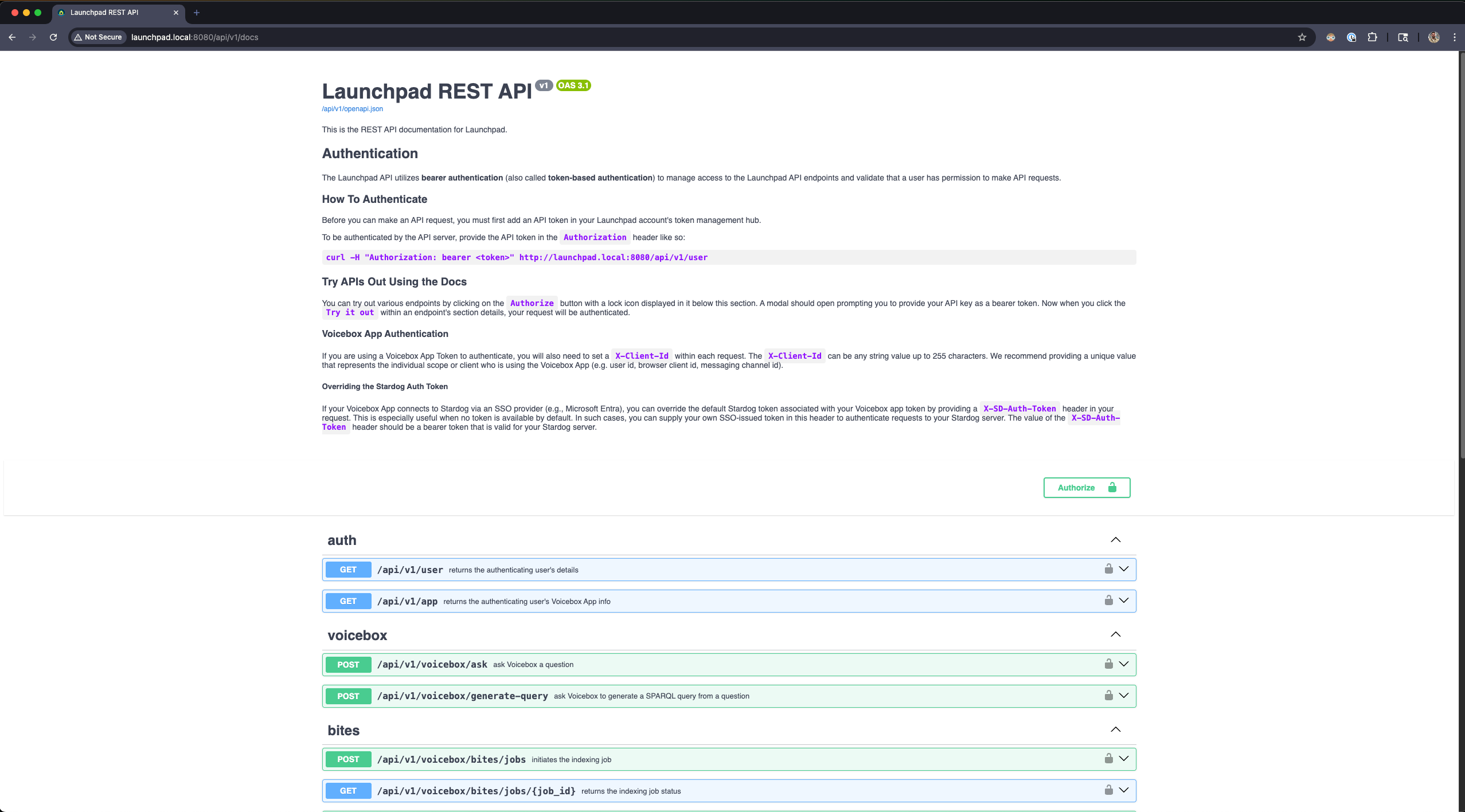
Creating a Voicebox Application and Associated API Key
To use the Voicebox REST API, you need to create a Voicebox application in Launchpad and generate an API key that is scoped to that application. This API key will be used to authenticate your requests to the Voicebox REST API:
To do so, follow these steps:
-
Create a Voicebox application. In the bottom left corner of the Launchpad UI, click on your username opening the user menu, then click on Manage API Keys.
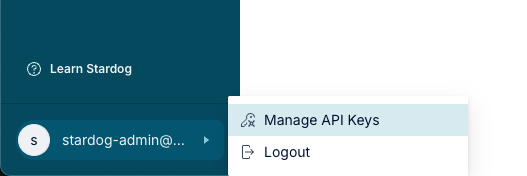
-
Click on New Voicebox App and fill in the details for your application. It will ask you to scope the application with details such as the connection to use, database, model, etc.
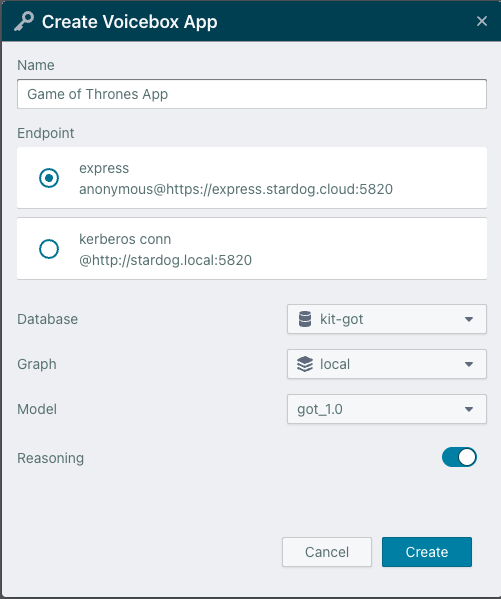
-
Once the application is created, you will need to create an API key that is scoped to the Voicebox application. Click on New App Key in the Voicebox application you just created. You can provide a name for the API key, and adjust the expiration date if desired.
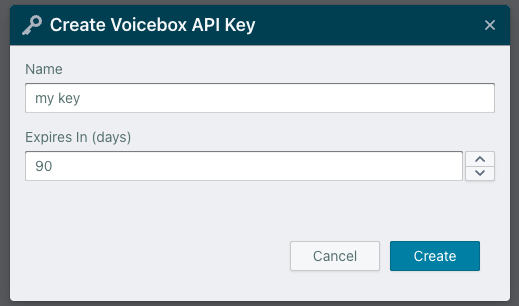
-
After creating the API key, you will be able to copy it only once. This API key will be used to authenticate your requests to the Voicebox REST API.
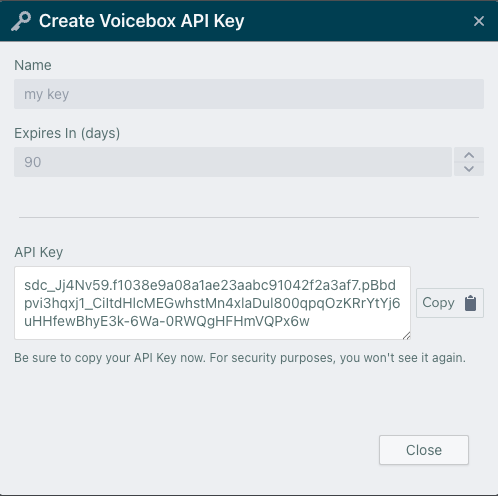
The API key should be provided in the Authorization header of your requests as a Bearer token. You must also include a X-Client-Id header with an identifier < 255 characters long that identifies a user of the Voicebox application. This can be any alphanumeric string.
# Voicebox App token
token=sdc_xyz...

curl --silent -X 'POST' \
  'http://launchpad.local:8080/api/v1/voicebox/ask' \
  -H 'Accept: application/json' \
  -H 'X-Client-Id: someones-id' \
  -H "Authorization: Bearer $token" \
  -H 'Content-Type: application/json' \
  -d '{
  "query": "Who is Cersei Lannister married to?"
}' | jq '{ "Result": .result, "SPARQL Query Used": (.actions[] | select(.type == "sparql") | .value)}'
{
  "Result": "Cersei Lannister is married to [Robert Baratheon](urn:stardog:marketplace:demos:got:characters:901).",
  "SPARQL Query Used": "# Who is Cersei Lannister married to?\n\nSELECT DISTINCT ?spouse0 \nWHERE {\n  ?character0 a got:Character . \n  ?character0 stardog:label \"Cersei Lannister\" . \n  ?character0 got:spouse ?spouse0 . \n  ?spouse0 a got:Character . \n  FILTER ( ?character0 != ?spouse0)\n}"
}
Stardog Authentication for API Requests
When making API requests to the Voicebox REST API, the Voicebox Service makes requests to Stardog in order to answer your question. There is a Stardog credential associated with the Voicebox application by means of the Launchpad connection you selected when creating the Voicebox application. In some cases, you may need to override the default authentication method used by Launchpad.
The authentication method depends on your Stardog connection type:
Username/Password Connections
When you authenticate through the Launchpad interface (create a new connection), Launchpad obtains a JWT from the Stardog server on behalf of the authenticated user and persists it beyond the Launchpad session for subsequent requests. If you try and use the connection in Launchpad and your token is invalid or expired, Launchpad will prompt you to re-authenticate, obtaining a new JWT and persisting it for future use. This means that it is possible for a JWT associated with the connection to expire when using it programmatically and not through the Launchpad UI since you will not be prompted to re-authenticate.
If you encounter authentication errors or want to ensure you always have a valid token for programmatic requests, you can manually retrieve a fresh token from the Stardog server associated with the Voicebox app’s connection using the /admin/token endpoint (as described below) and include it in your requests using the X-SD-Auth-Token header to override the stored credential. You could also log into Launchpad and re-authenticate the connection to obtain a new JWT, but this is not always practical for programmatic use.
SSO Connections
SSO connections (such as Microsoft Entra) require manual token management since Launchpad does not persist JWTs from external identity providers beyond the session. For these connections, you must:
- Obtain a valid token from your SSO provider that Stardog is configured to accept
- Include the token in your API requests using the
X-SD-Auth-Tokenheader
Token Override Capability
The X-SD-Auth-Token header can also override any JWT that Launchpad has persisted for a connection. This is particularly useful for ensuring you always have a valid, unexpired token.
Manual Token Retrieval from Stardog
As noted earlier, if Stardog is configured to issue JWTs, you can manually retrieve a token using the /admin/token endpoint. This is useful for obtaining a fresh token when needed.
Example:
curl -u <username>:<password> https://<stardog-server-url>/admin/token \
The returned JWT issued by Stardog can then be included in your Voicebox API requests:
X-SD-Auth-Token: <your-jwt-token>
If using the Stardog CLI, you can also use the stardog-admin user token command to obtain a JWT from Stardog for a user.
Release notes for the service are published in the Stardog Voicebox Release Notes; it is versioned and released independently of Launchpad.